| SEO title | Support Ticket Automation for B2B SaaS: Routing & CRM Sync |
|---|---|
| Meta description | Automate support tickets at a small B2B SaaS company: classify, route, send customer updates and sync to your CRM, with steps and mistakes to avoid. |
| URL slug | /blog/support-ticket-automation-b2b-saas |
| Primary keyword | support ticket automation |
| Secondary keywords | automate support tickets, ticket routing automation, support ticket workflow, automated ticket updates, helpdesk automation for SaaS, support ticket CRM sync, AI ticket classification, n8n support ticket automation |
| Search intent | Informational with commercial investigation (Cluster 4 SaaS Operations, support workflows; supports Cluster 2 and the AI workflow automation pillar) |
| Schema | Article + FAQPage |
Support ticket automation uses rules, integrations and, where it helps, AI to handle repetitive ticket work automatically: identifying what a request is about, routing it to the right person, confirming receipt to the customer, sending status updates and recording the outcome in your CRM. Done well, customers hear back quickly, tickets reach the person who can fix them and nothing sits unowned in a shared inbox.
In a 5-20 person SaaS company, support is usually handled by the founders, engineers and customer success people who also run the rest of the business. Requests arrive by email, chat and in-app messages. Customers wait without hearing anything, billing questions land with engineers, and the CRM has no idea an important account has an open problem. This guide follows one ticket through six stages: identify the issue, route it, acknowledge receipt, send progress updates, update the customer record, and close or escalate. For each stage you get the trigger, the steps, the fields involved, where AI fits and where a person should stay in the loop. It builds on our AI workflow automation guide, and it pairs with our guides to CRM automation and lead management automation.
A note on what this guide is: the workflows and the worked example below are practical designs based on common SaaS support operations. They are not client case studies, and we don’t quote results for them.
What support ticket automation is (and what it isn’t)
A support ticket is a record of one customer request, with a reference number, the customer’s details, a description of the issue, an owner and a status. A help desk is the tool where those records live, such as Zendesk, Freshdesk, Help Scout or HubSpot Service Hub, though some small teams start with a shared inbox. Support ticket automation is the set of rules and integrations that move tickets through that tool without someone doing each step by hand. The usual areas are:
- Classification: deciding what kind of request it is and how urgent it looks.
- Routing: assigning an owner and alerting them.
- Acknowledgement: telling the customer the request arrived and what happens next.
- Status updates: emailing the customer when something meaningful changes.
- Record keeping: saving the issue, category, owner, status and resolution to the CRM or a spreadsheet.
- Escalation and closure: flagging stuck tickets for a person and recording how resolved ones ended.
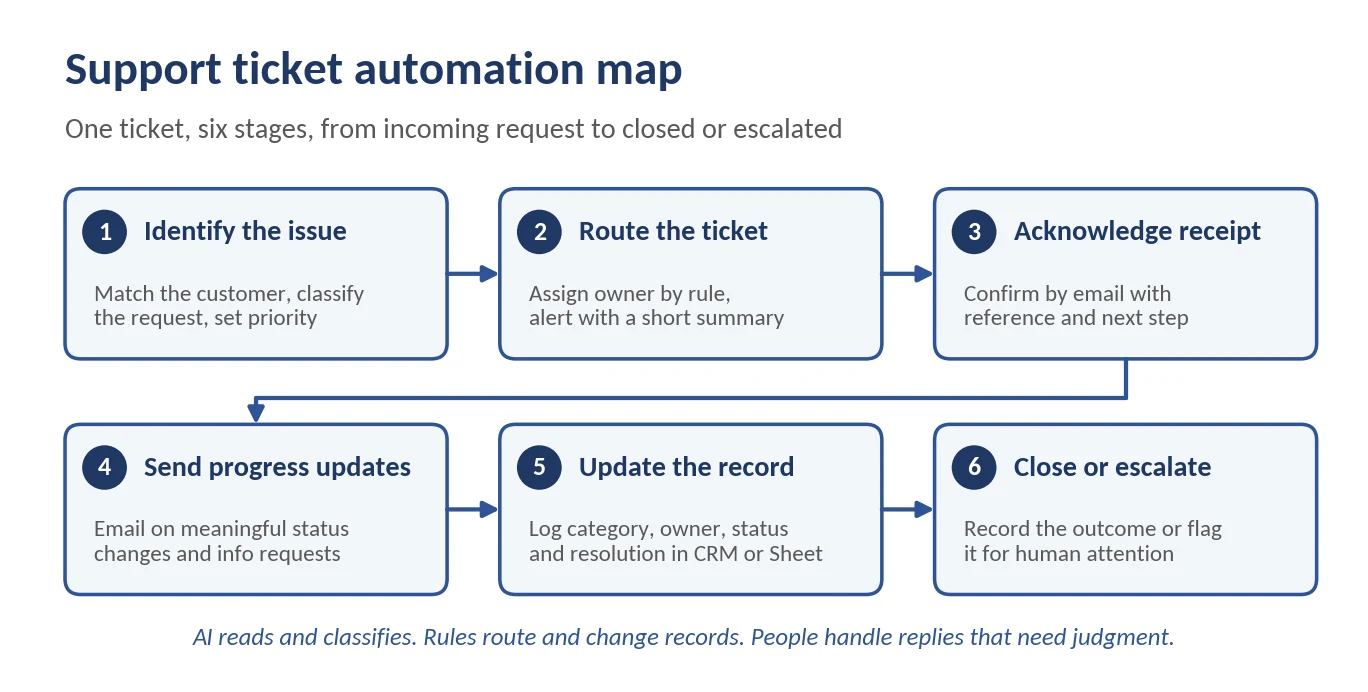
Ticket automation vs. ticket deflection, help desk software and chatbots
Search results for this topic mix several ideas, so it helps to separate them:
- Ticket deflection tries to stop tickets from being created, through help articles and AI answers. Ticket automation handles the tickets that do get created.
- Help desk software is where tickets live. Automation is the set of rules and connections around it, some built into the help desk and some run by an external tool.
- Chatbots talk to customers. Ticket automation mostly works behind the scenes: reading, routing, notifying and recording.
- CRM automation keeps customer records accurate across the business. Ticket automation feeds it support history. Our CRM automation guide covers the wider set.
This guide covers the second kind in each pair: what happens to a ticket after a customer writes in.
Why small SaaS teams struggle with support tickets
- No clear owner: Tickets sit in a shared inbox until someone happens to pick them up, and two people sometimes answer the same one.
- Misrouted requests: A billing question reaches an engineer, or a bug report reaches nobody who can fix it, and it gets forwarded by hand.
- Silent waiting: Customers don’t know whether their message arrived, so they write again and create duplicates.
- Hidden urgency: A request from a key account looks the same as any other until it turns into an escalation.
- Support history outside the CRM: Account managers and founders walk into a renewal call without knowing the customer has had three open issues.
- No record of outcomes: Without categories and resolutions, you can’t see which problems repeat or which fix would remove the most tickets.
Most of these are process gaps, not tool gaps. They need clear categories, owners and statuses, and a few connected tools.
Rule-based vs. AI-assisted ticket automation
Most ticket automation is plain rules: when a ticket is tagged billing, assign it to the finance owner and send the billing acknowledgement. Rules are cheap, fast and predictable, so use them for routing, ownership, status changes, reminders and escalation timers.
AI helps in one place in particular: reading the free text of an incoming ticket. A customer doesn’t pick a clean category; they write a paragraph. An AI step can read that paragraph and return a category from a fixed list, a suggested urgency and a one-line summary. The practical rule: use AI to read and classify, and use fixed rules to route and change records. If the AI isn’t confident, or returns something outside your category list, the ticket goes to a person to sort. AI should not write and send replies to customers, or close tickets, without review.
What to settle before you automate
Automating unclear categories and owners only misroutes tickets faster. Before building anything, write down six things:
- Your categories: a short fixed list. A good starting set is billing, technical issue, account access, product question and complaint, plus “needs review” for anything unclear.
- What counts as urgent: for example, a customer who can’t log in at all, an outage affecting several users or a payment problem on a key account. Write the rules so they can be checked.
- An owner for each category and a fallback: who takes billing, who takes technical issues, and who covers when someone is away.
- Your statuses and what each one triggers: for example Received, In progress, Waiting on customer and Resolved, and which of them send the customer an email.
- Response targets by priority: targets your team can meet consistently. Automation can alert and remind, but people still have to respond.
- One owner for the workflow: a named person who approves changes to categories and rules and checks failed runs.
The support ticket workflow, stage by stage
Tool names are examples, not endorsements. Use whichever tools your team already runs, and check what your help desk and CRM plans include before building.
1. Identify the issue
- Problem: Every ticket arrives as free text, so someone has to read it, work out what it is and decide how urgent it is before anything else can happen.
- Trigger: A new ticket is created, or a new email arrives at your support address.
- Steps:
- Receive the ticket from the help desk through a webhook or native integration, or from the support inbox.
- Match the sender’s email to a customer in your CRM, then pull their company, plan and account owner.
- Have an AI step read the subject and message and return a category from your fixed list, a suggested urgency, a one-line summary and a confidence level.
- Check the result with rules: if the category isn’t on your list or confidence is low, set the category to “needs review.”
- Apply rule overrides for urgency, such as a key-account flag or specific keywords like “outage” or “cannot log in.”
- Write the category, priority and summary back to the ticket, and mark them as AI-suggested.
- CRM fields touched: Category, priority, summary, customer account, plan, account owner, classification source (AI-suggested or person).
- Where AI fits: This is where AI earns its place: reading free text and returning a category, an urgency suggestion and a short summary.
- Human checkpoint: A person reviews the “needs review” queue each day and spot-checks a sample of AI-classified tickets each week.
- Typical tools: Help desk or shared inbox, CRM (HubSpot, Pipedrive, Salesforce), n8n or Make.com, an AI model provider.
- Watch for: Customer text is untrusted input. A message can contain instructions aimed at your AI step, so restrict the output to fixed fields, validate it with rules and never let the AI trigger actions directly. Also keep passwords, payment details and other sensitive data out of what you send to an AI provider, and know what that provider does with the data you do send.
2. Route the ticket
- Problem: Tickets get forwarded by hand, sent to the wrong person or left in a shared queue where everyone assumes someone else has it.
- Trigger: A ticket has a valid category and priority, or lands in the “needs review” queue.
- Steps:
- Map the category to a team or person using your routing table.
- Adjust by rule: key accounts, high priority or a customer with an open escalation go to a named senior owner.
- Check availability, such as out-of-office or on-call status, and use the fallback owner if needed.
- Assign the owner in the help desk.
- Send a Slack or email alert to the owner with the summary, priority, customer and a link to the ticket.
- Start a response timer or create a task due within your response target for that priority.
- If the ticket is still unacknowledged after a set time, escalate to the backup owner.
- CRM fields touched: Assignee, team, priority, due-by time, assigned timestamp, first-response timestamp.
- Where AI fits: Writing the short summary the owner sees in the alert, so they can decide what to do before opening the ticket.
- Human checkpoint: The owner can reassign any ticket. Review the routing table monthly.
- Typical tools: Help desk, Slack or email, CRM, n8n or Make.com.
- Watch for: Misclassified tickets sent confidently to the wrong person. Make reassignment easy and log each reassignment, because a pattern of reassignments tells you which category or rule needs fixing. Alert a named owner and a backup, not a whole channel.
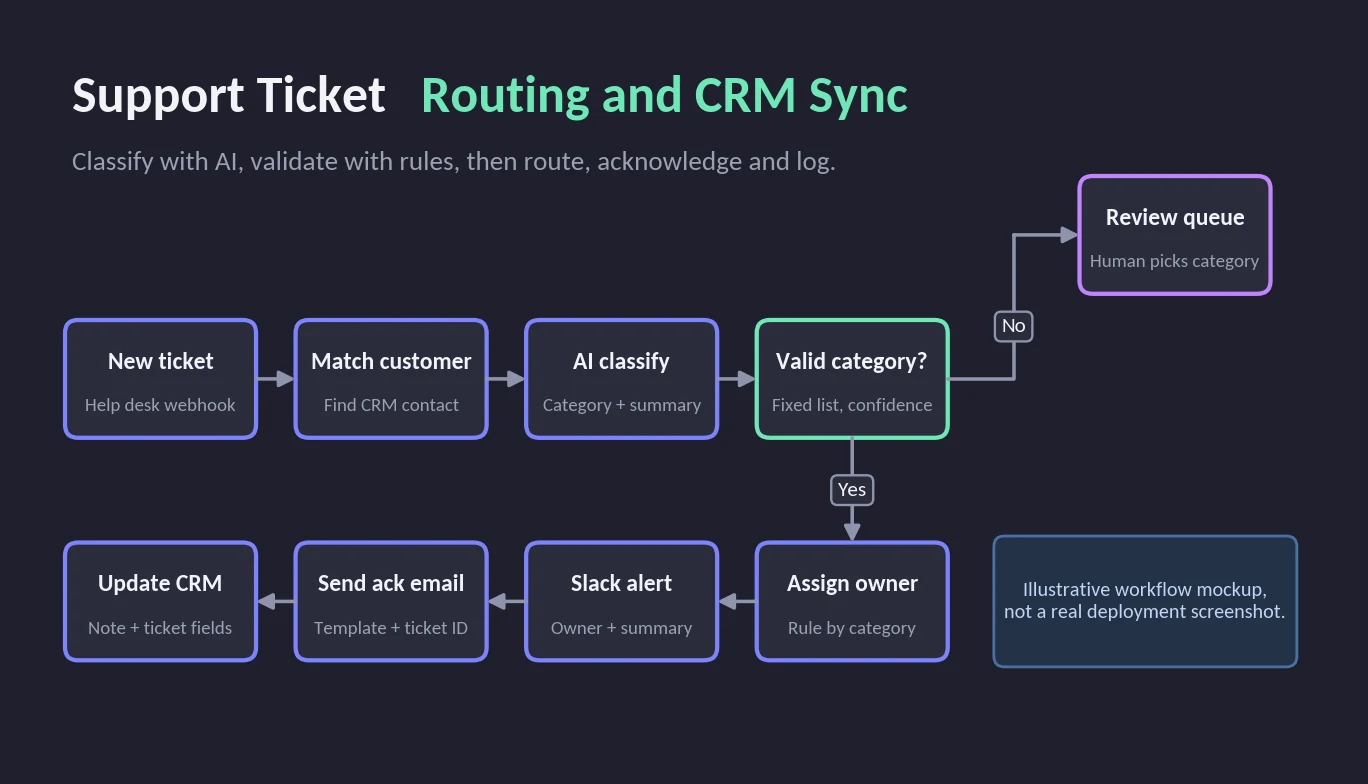
3. Acknowledge receipt
- Problem: Customers don’t know whether their request arrived, so they send follow-ups, which creates duplicate tickets and more work.
- Trigger: A ticket is created.
- Steps:
- Pick the acknowledgement template that matches the category.
- Fill in the ticket reference, the customer’s name and a one-line restatement of the request.
- State the next step and the response window for that priority.
- Send the email from your support address with reply threading, so the customer’s reply attaches to the same ticket.
- Record the acknowledgement timestamp on the ticket.
- CRM fields touched: Ticket ID, acknowledgement sent timestamp, template used.
- Where AI fits: Not needed. Fixed templates are predictable and safe. If AI restates the request, keep it close to the customer’s own words and make sure it never promises a fix or a time.
- Human checkpoint: A person reviews the templates each quarter and whenever categories change.
- Typical tools: Help desk email features or an email service, CRM, n8n or Make.com.
- Watch for: Auto-reply loops with out-of-office messages and other automated senders, so skip acknowledgements for automated replies and no-reply addresses. Also watch for duplicate acknowledgements when a customer’s reply creates a second ticket, and for promising response times you can’t meet.
4. Send progress updates
- Problem: Customers hear nothing until the ticket is closed, or they get so many notifications that they stop reading them.
- Trigger: A ticket changes to a customer-facing status, or a ticket waits on the customer past your set time.
- Steps:
- Define the customer-facing statuses, for example Received, In progress, Waiting on you and Resolved.
- When the status changes to one of them, send a short update with the ticket reference, the new status and what happens next.
- When a ticket moves to “Waiting on you,” state exactly what you need and why.
- If the customer hasn’t replied after your set time, send one reminder, then a second after a longer gap.
- Do not email for internal changes such as reassignments or private notes.
- CRM fields touched: Status, status changed timestamp, last customer update sent, reminder count, waiting-on-customer since.
- Where AI fits: Optional: drafting the “what we need from you” sentence from the owner’s notes, for the owner to review before it sends.
- Human checkpoint: The owner decides when to move a ticket to “Waiting on you” and checks any AI-drafted request.
- Typical tools: Help desk, email service, CRM, n8n or Make.com.
- Watch for: Notification fatigue and leaked internal detail. Only email on changes the customer cares about, keep internal notes out of templates and avoid flapping, where a status changes back and forth and triggers several emails in a row.
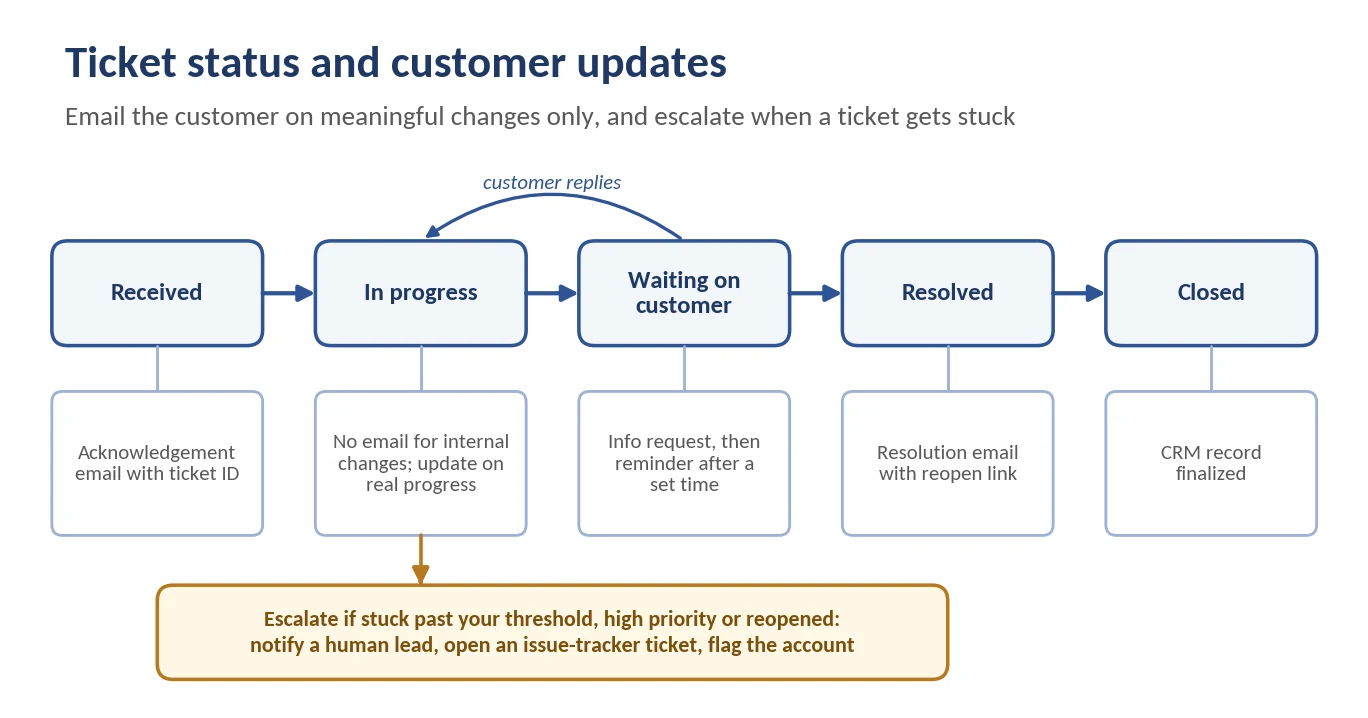
5. Update the customer record
- Problem: Support history stays inside the help desk, so sales, customer success and the founder can’t see what the customer has been dealing with.
- Trigger: A ticket is created, changes status or is resolved.
- Steps:
- Find the customer’s company and contact in the CRM using the matched email or domain.
- Log the ticket as an activity or note on the contact and company, with the reference, category, owner and a link back to the ticket.
- Update summary fields on the company record, such as open ticket count, last ticket date and last ticket category.
- On resolution, write the status, resolution category and resolved date.
- Apply flag rules, for example a complaint on a key account or several tickets in a short period, by creating a task for the account owner. A person decides whether the account is actually at risk.
- CRM fields touched: Ticket ID, category, priority, owner, status, resolution, resolved date, open ticket count, last ticket date, account flag.
- Where AI fits: Writing the one-line ticket summary that goes on the CRM note, and a short resolution summary for the owner to confirm.
- Human checkpoint: The account owner reviews flagged accounts. Anyone can correct a category or resolution after the fact.
- Typical tools: CRM, or a Google Sheet for teams without CRM fields for support (append or update one row per ticket, keyed on ticket ID), n8n or Make.com.
- Watch for: Duplicates and drift. Use the ticket ID as the key so reruns update a record instead of creating another, and recalculate open ticket counts when tickets close. Store a summary and a link, not the full message, so the CRM doesn’t become a second copy of your support data. Related patterns, like owner fields and flag-only rules, are in our CRM automation guide.
6. Close or escalate
- Problem: Resolved tickets are left open or closed without a recorded outcome, and stuck tickets go unnoticed until the customer complains.
- Trigger: A ticket is marked resolved, a customer reply reopens it, or a ticket passes your escalation threshold.
- Steps:
- On resolution, require a resolution category and a short note from the owner.
- Send a resolution email that says what was done and gives a simple way to reopen the ticket.
- If the customer doesn’t reply within your set window, close the ticket and finalize the CRM record.
- If a customer replies after resolution, reopen the ticket, return it to the owner and note the reopen.
- If a ticket is high priority, has passed its response or resolution threshold or has been reopened more than once, notify a human lead.
- If the cause is a product bug, create a ticket in your issue tracker, such as GitHub, Jira or Linear, and link it to the support ticket.
- CRM fields touched: Resolution category, resolution note, resolved date, closed date, reopen count, escalation flag, linked issue ID.
- Where AI fits: Drafting the resolution summary from the ticket thread, and grouping resolution notes into themes for your weekly review.
- Human checkpoint: A person confirms every resolution and handles every escalation. Closing after the waiting window is the only step that can run on its own, and many teams keep that manual at first.
- Typical tools: Help desk, CRM, issue tracker, Slack, n8n or Make.com.
- Watch for: Auto-closing a ticket the customer still cares about, and loops between the help desk and the issue tracker. Add a “handoff completed” field and check it before creating a linked issue, and review auto-closed tickets weekly.
Worked example: one support ticket, end to end
To make the stages concrete, here is one hypothetical ticket moving through the workflow. The company, the customer and the setup are invented for illustration, and no results are implied.
The setup: a ten-person SaaS company with a help desk, HubSpot as the CRM and Slack. An admin at a fictional customer writes in that several of their team can’t reach the dashboard since this morning.
| Step | What happens | Stage |
|---|---|---|
| 1 | The ticket is created. The workflow matches the sender to the customer in the CRM, notes their plan and account owner, and the AI step returns the category “account access” with a one-line summary. Rules raise the priority because several users are affected. | Identify the issue |
| 2 | The routing table sends account access tickets to the technical owner. A Slack message with the summary, priority and ticket link goes to that person, and a response task is created. | Route the ticket |
| 3 | The customer receives the account access acknowledgement with the ticket reference and the response window for that priority. | Acknowledge receipt |
| 4 | The owner asks for the affected email addresses and sets the status to Waiting on you. The customer gets a short email explaining what is needed. | Send progress updates |
| 5 | A note with the ticket reference, category and owner is added to the company record in HubSpot, and the open ticket count updates. | Update the record |
| 6 | The owner fixes the issue, adds a resolution category and note, and the customer gets the resolution email with a reopen link. If the issue turns out to be a bug, a linked issue is created and the account owner is notified. | Close or escalate |
What to automate and what to keep human
The earlier a step sits in the ticket’s life and the more structured its input, the safer it is to automate. Anything customer-facing that needs judgment, or that is hard to undo, stays with a person.
| Automate fully | Automate with human approval | Keep human |
|---|---|---|
| Matching the sender to the CRM AI-suggested category and summary Routing by rule Internal alerts and tasks Acknowledgement from a template Status-change emails from fixed templates Reminders when waiting on the customer Writing ticket data to the CRM | AI-drafted replies to customers Moving a ticket out of “needs review” Closing tickets after the waiting window, until proven Creating linked issues in the tracker Flagging an account as at risk | Replies to complaints or upset customers Diagnosing bugs Security or data incidents Refunds and billing disputes Outage communication Anything legal or contractual |
Which metrics to track
Measure against your own baseline before and after you automate. Public benchmarks vary widely by product, customer type and team size, so this guide doesn’t quote them.
| Metric | How to measure it | What it tells you |
|---|---|---|
| First response time | First human reply time minus ticket creation time | Whether routing and alerts work |
| Time to resolution | Resolved time minus created time, by category | Where tickets take longest |
| Classification accuracy | A weekly sample compared with a person’s category | Whether the AI step and your list are good enough |
| Tickets needing review | Share sent to the “needs review” queue | How clear your categories are |
| Reopen rate | Reopened tickets divided by resolved tickets | Whether fixes hold and resolutions are clear |
| Waiting-on-customer age | Time spent in that status | Whether reminders work |
| Failed runs | Errors in the workflow log | Reliability of the automation itself |
Help desk automation, Make.com or n8n?
Most help desks include their own automation: rules that assign tickets, set priority, tag, send canned replies and run timers. For work that stays inside the help desk, that is often enough. What is included varies by help desk and plan, so check yours before building anything.
Reach for an external tool like n8n or Make.com when the workflow spans several systems (the help desk, CRM, Slack, an issue tracker and a spreadsheet), when it needs an AI classification step, or when the logic goes beyond what the built-in rules handle.
| Help desk built-in automation | Make.com | n8n | |
|---|---|---|---|
| Best for | Assignment, tagging, canned replies and timers inside the help desk | Straightforward flows, such as ticket to CRM note to Slack | Multi-stage flows with AI classification, branching and error handling |
| Reach beyond the help desk | Varies by help desk and plan | Wide, through integrations | Wide, with room for custom code |
| Technical comfort needed | Lower | Moderate | Higher |
| Trade-off | Limits depend on your plan and the tool | Can get harder to manage as scenarios grow | Takes more setup and skill |
Our rule of thumb: use the help desk’s own rules for routing, tagging and acknowledgements when they cover your needs. Add Make.com when you need to connect the help desk to the CRM and Slack in a simple chain. Choose n8n when the workflow needs an AI step with validation, a review queue, retries and error alerts in one place. For current pricing and features, check each vendor’s official pages, since these change often. For a wider comparison, see our AI workflow automation guide.
Mistakes to avoid and guardrails
Support tickets contain customer problems and sometimes sensitive data, so automation that reads and writes them needs safeguards from day one.
- Letting AI reply on its own: Use AI to read, classify and draft. A person sends anything that needs judgment.
- Trusting classification blindly: Keep a fixed category list, a confidence check and a review queue, and audit a sample every week.
- Treating customer text as safe: Messages can contain instructions aimed at your AI step. Restrict outputs to fixed fields and validate them with rules.
- Sending sensitive data to AI providers: Keep passwords, payment details and similar data out of prompts, and know where your provider sends and stores what you do share.
- Auto-reply loops: Skip acknowledgements for automated senders and no-reply addresses, and test with out-of-office replies.
- Too many notifications: Email customers only on changes they care about, and keep internal notes private.
- Duplicate tickets and records: Key records on the ticket ID, and handle customer replies as updates, not new tickets.
- No error handling: Add failure alerts, retries and logs. A silent failure means a ticket nobody sees or a customer who never hears back.
- Auto-closing too early: Review closed-by-rule tickets weekly and keep a one-click reopen.
- No owner: Name one person responsible for the workflow and for the category list.
A 30-day plan to launch your first ticket workflow
Week 1 (days 1-7): Audit and define. Export the last month or two of tickets and read a sample. Fix your category list, priority rules, owners, statuses and acknowledgement templates.
Week 2 (days 8-14): Build identification and routing in test mode. Build stages 1 and 2, with alerts going to a test channel. Compare the AI’s suggested category with a person’s for each ticket, and adjust your categories and rules.
Week 3 (days 15-21): Go live with acknowledgements. Route real tickets, switch on acknowledgements (stage 3) and review every alert and “needs review” ticket. Fix the rules that misroute.
Week 4 (days 22-30): Add updates, CRM sync and closure. Add stages 4 to 6, with escalation alerts to a named person. Start tracking the metrics above, document the workflow and its owner, and pick the next improvement. For a fuller version of this plan, see our AI workflow automation guide.
Build it yourself or get help?
Plenty of small teams can build a first version themselves. Use this as a rough guide.
Building it yourself usually works when:
- Your help desk’s built-in rules cover routing and acknowledgements.
- Someone on the team is comfortable with visual builders and has time to maintain the result.
- A misrouted ticket is an annoyance, not a crisis.
Bringing in help makes sense when:
- The workflow spans the help desk, CRM, Slack and an issue tracker.
- It needs an AI step, a review queue, API or webhook work or error handling.
- Tickets contain sensitive customer data.
- Nobody has the time to own and maintain it.
Either way, start with identification and routing before adding the other stages. They show you quickly whether your categories and owners are right.
Frequently asked questions
What is support ticket automation?+
It is the use of rules, integrations and sometimes AI to handle repetitive ticket work automatically, such as classifying requests, assigning owners, confirming receipt to the customer, sending status updates and recording outcomes in the CRM.
How do you create a support ticket?+
A customer submits a request by email, a form, chat or an in-app message, and the help desk creates a record with a reference number, the customer’s details, the description and a status. Automation can fill in the category, priority and owner as soon as the record exists.
What is the best helpdesk ticketing system?+
There is no single best one. For a small SaaS team, compare how well each tool connects to your CRM and Slack, which automation features your plan includes, how it handles email and in-app channels, and what it costs at your team size. Check each vendor’s current pages, since plans change often.
Can Jira be used as a support ticket system?+
Jira is commonly used to track engineering work, and Atlassian also sells a separate service desk product built for customer requests. A team can track support issues in a general project tracker, but customer-facing ticketing usually needs a way to receive requests by email or a portal and to reply to customers. Compare current options before choosing.
What is the difference between ticket automation and ticket deflection?+
Deflection tries to prevent tickets through self-service content and AI answers. Ticket automation handles the tickets that are created: classification, routing, updates, record keeping and escalation. Many teams use both.
Do I need AI for support ticket automation?+
No. Routing, acknowledgements, status emails and CRM updates are rule-based. AI helps with reading free text to suggest a category and summary, but it should read and classify rather than reply to customers or close tickets without review.
How much does support ticket automation cost?+
It depends on your help desk plan, the automation platform, any AI usage and the time to build and maintain the workflow. Check each vendor’s official pricing pages for current figures, and include maintenance time in your estimate.
What should I not automate in support tickets?+
Avoid unreviewed AI replies to customers, closing tickets that may still matter, automatic handling of security or data incidents, and anything about refunds, billing disputes or complaints that needs a person’s judgment.