| SEO title | CRM Automation for Small SaaS Teams: 7 Workflows |
|---|---|
| Meta description | Seven CRM automation workflows for small B2B SaaS teams, with triggers, field logic and guardrails to cut manual data entry. |
| URL slug | /blog/crm-automation-small-saas-teams |
| Primary keyword | CRM automation |
| Secondary keywords | CRM automation examples, CRM automation workflows, automate CRM data entry, CRM data hygiene, CRM automation for SaaS |
| Search intent | Informational with commercial investigation (Cluster 2, supports the AI workflow automation pillar) |
| Schema | Article + FAQPage |
CRM automation uses rules, integrations and, where it helps, AI to handle repetitive CRM work automatically: logging data, assigning leads, creating follow-up tasks, moving deals along and keeping records clean. Done well, your CRM stays accurate without anyone spending their evenings on data entry.
For a 5-20 person SaaS company, this matters because the CRM is usually updated by the same people who sell, onboard and support. This guide covers seven CRM workflows that remove that manual work. For each one you get the trigger, the steps, the CRM fields involved, where AI fits and where a person should stay in the loop. It goes deeper on the CRM side of our wider guide to AI workflow automation for small B2B SaaS teams.
A note on what this guide is: the seven workflows below are practical designs based on common SaaS operations. They are not client case studies, and we don't quote results for them.
What CRM automation is (and what it isn't)
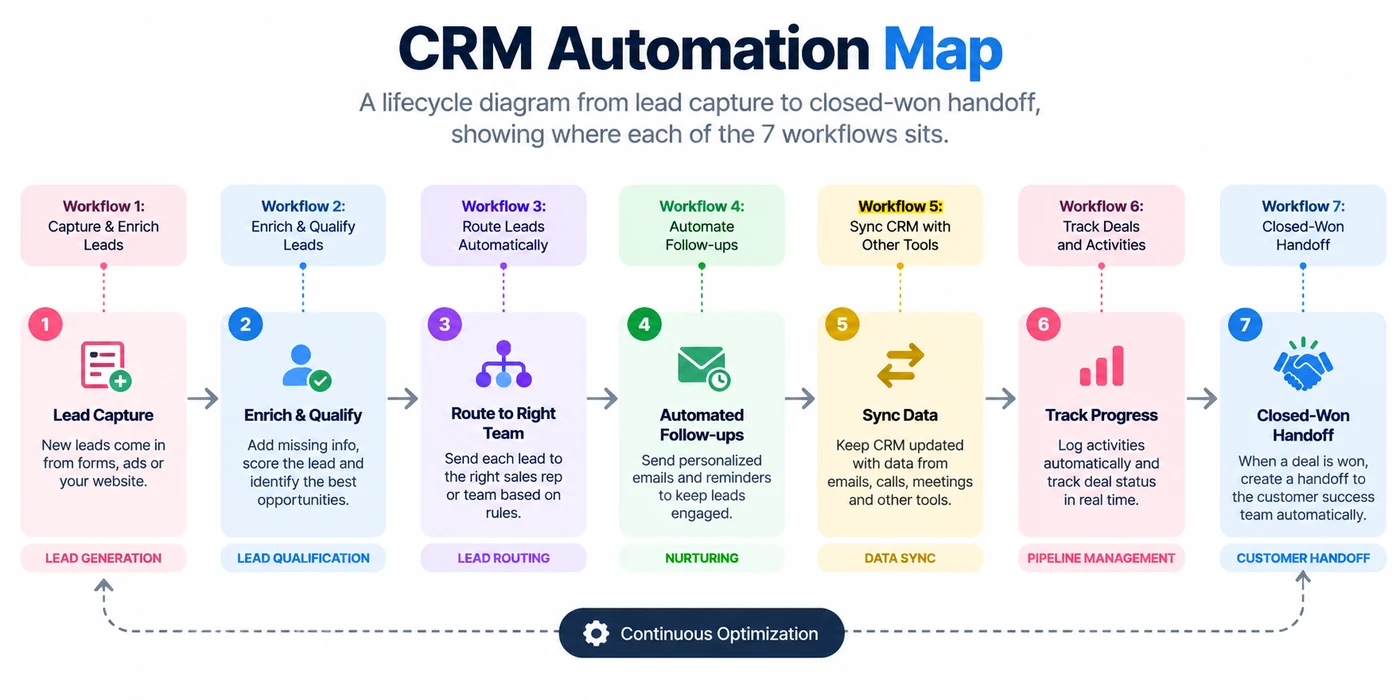
A CRM (customer relationship management) system is where a company keeps its contacts, companies, deals and conversation history in one place. HubSpot, Pipedrive and Salesforce are common examples. CRM automation is the set of workflows that keep that system updated and moving without manual effort. The usual areas are:
- Data capture and entry: creating and updating records from forms, meetings and emails.
- Lead handling: enrichment, scoring and assigning an owner.
- Follow-up: tasks, reminders and alerts when deals stall.
- Pipeline movement: updating stages and fields when something happens elsewhere.
- Reporting: turning CRM data into regular summaries.
- Handoffs: passing closed deals to billing, onboarding and support.
CRM automation vs. marketing automation
The two overlap, and many tools bundle them, but they solve different problems. Marketing automation focuses on campaigns: email sequences, audience segments and nurturing. CRM automation focuses on the operational side of sales and customer records: who owns a lead, what happens next on a deal, and whether the data is correct. This guide covers the second kind, which is where small SaaS teams usually lose the most time.
Rule-based vs. AI-assisted CRM automation
Most CRM automation is plain rules: when a deal reaches this stage, create these tasks. Rules are cheap, fast and predictable, so use them wherever the input is structured, such as routing, task creation and stage changes.
An AI step helps where the input is messy text: call notes, email threads, free-text form answers and company descriptions. It can read that text and return something structured, such as a summary, a next step or a category. The practical rule: use AI to read and draft, and use fixed rules to decide and change records. An AI model should not silently change a deal stage or overwrite a field a person entered.
What to fix before you automate
Automating a messy process only makes the mess faster. Before building anything, settle four things:
- Stage definitions: what must be true for a deal to enter and leave each stage.
- Required fields: which fields must be filled at each stage, and in what format.
- One source of truth per field: for example, billing owns the plan, the CRM owns the deal stage.
- One owner for the CRM: a named person who approves changes to fields, stages and workflows.
How to choose which CRM workflow to automate first
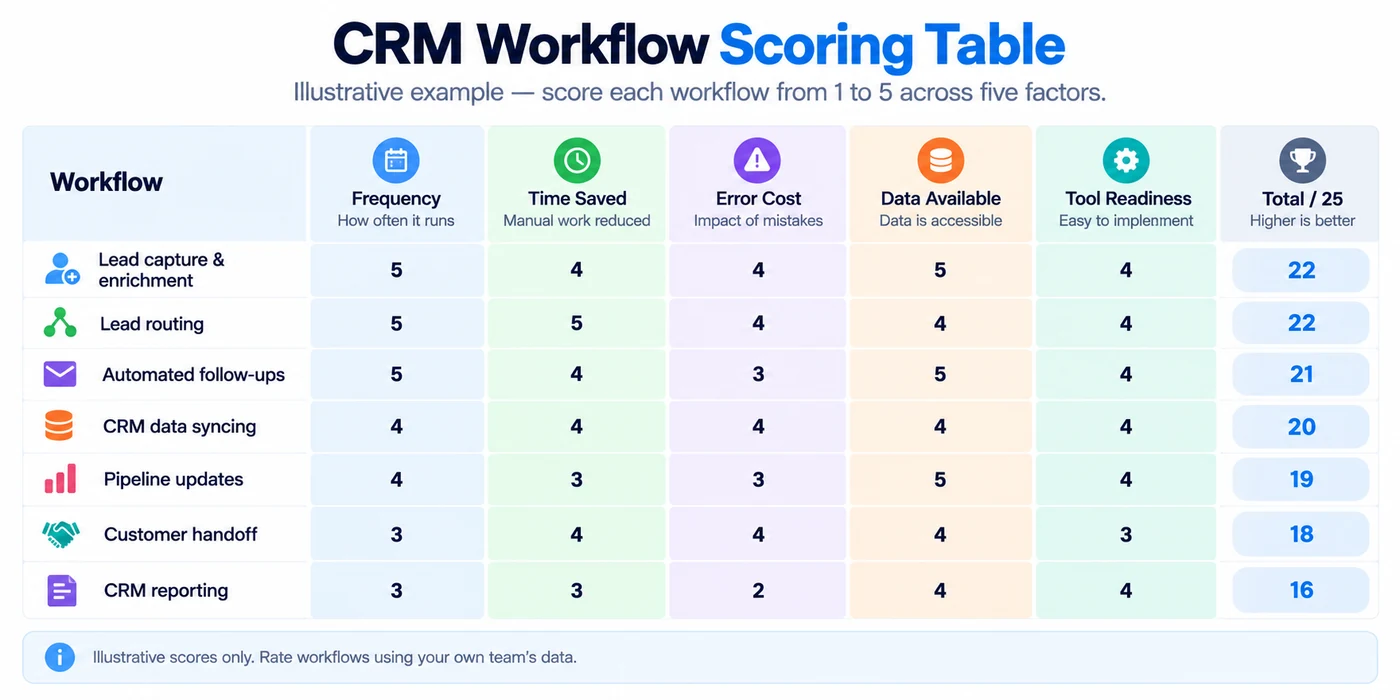
Score each candidate from 1 (very low) to 5 (very high) on five factors, then start with the highest total. This is the same method we use in our AI workflow automation guide, applied to CRM work.
| Factor | Question to ask | Scores higher if... |
|---|---|---|
| Frequency | How often does it happen? | It runs daily or weekly, not quarterly |
| Time saved | How much time could automation save? | People spend more than a few minutes each time |
| Error cost | What do manual mistakes cost you today? | Errors hurt (keep human review on these steps) |
| Data availability | Is the data accessible and usable? | Inputs are digital and already in a tool |
| Tool readiness | Do we have the tools and integrations? | Your CRM and connected tools support it |
In the example below, lead capture and enrichment and lead routing score highest, because they run constantly and every missed lead costs pipeline. Reporting scores lowest on its own, but it depends on the others, because reports are only as good as the data behind them.
7 CRM automation workflows for small SaaS teams
Tool names are examples, not endorsements. Use whichever tools your team already runs, and check what your CRM plan includes before building.
1. Lead capture and duplicate prevention
- Problem: Leads arrive from forms, demo bookings, chat and outbound replies. The same person ends up created two or three times with different spellings, which splits their history and distorts reporting.
- Trigger: A new form submission, demo booking or newly created contact.
- Steps:
- Clean the incoming data: trim spaces and lowercase the email address.
- Search the CRM for an existing contact by email, then by company domain.
- If a match exists, update that record and log the new activity. If not, create the contact and associate the company by domain.
- Tag the lead source and campaign.
- Send fuzzy matches (similar name, same domain) to a review queue instead of merging them.
- CRM fields touched: Email (the main dedupe key), company domain, lead source, create date, owner.
- Where AI fits: Normalizing messy free text such as company names and job titles, and tagging intent from an open "how can we help?" field.
- Human checkpoint: A person reviews the fuzzy-match queue. Merges stay manual until your rules have proven reliable.
- Typical tools: Forms and scheduling tool, CRM (HubSpot, Pipedrive, Salesforce), n8n or Make.com.
- Watch for: Email-only matching misses people who use two addresses, and automatic merging can destroy data. Flag first, merge later.
If your leads come from outbound campaigns, our guide to cold email automation with n8n or Make.com shows how to sync replies and booked meetings into your CRM.
2. Lead enrichment and scoring
- Problem: Reps research each lead by hand, key fields like company size and industry stay empty, and lead scoring ends up as gut feel.
- Trigger: A new contact or company is created.
- Steps:
- Check which key fields are empty.
- Pull company data from an enrichment provider, and fill only the empty fields.
- Calculate a fit score against your ideal customer profile (ICP) using clear rules such as company size, industry and region.
- Write the score and a short reason to dedicated fields.
- Set the lead status for leads that pass your threshold.
- CRM fields touched: Company size, industry, country, ICP fit score, score reason, lead status.
- Where AI fits: Summarizing what a company does into one line, and mapping free-text industries onto your picklist values.
- Human checkpoint: Sales reviews borderline scores. Keep the scoring rules written down and easy to change.
- Typical tools: CRM, an enrichment provider such as Apollo.io, n8n or Make.com.
- Watch for: Enrichment data can be wrong or outdated. Never overwrite a field a person entered, and note the source of enriched values.
3. Lead routing and instant alerts
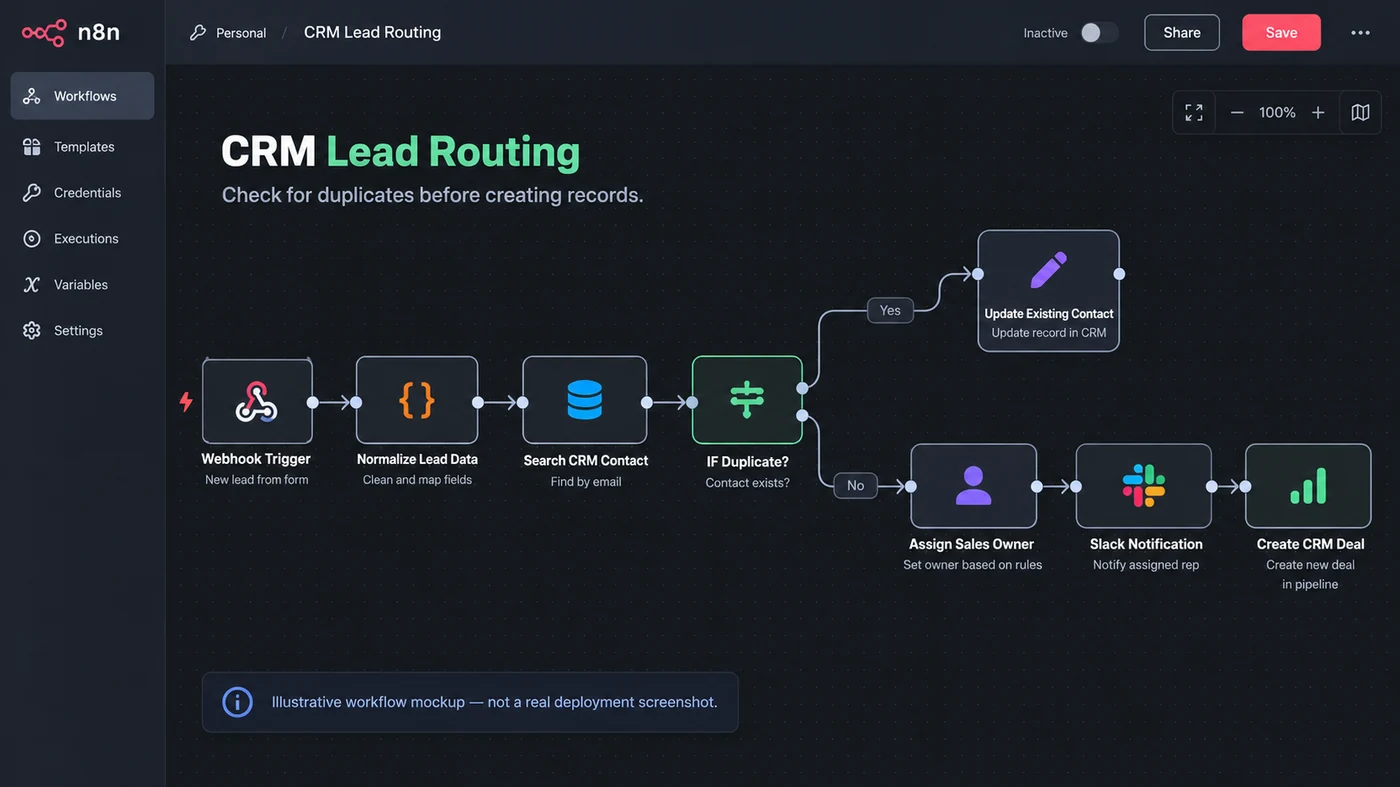
- Problem: Qualified leads sit unclaimed until someone notices them, and manual round-robin assignment breaks whenever someone is away.
- Trigger: A lead passes your qualification rule, or a demo is requested.
- Steps:
- Check the qualification rule (for example, fit score above your threshold).
- Assign an owner by rule: territory, company size or round-robin among available reps.
- Update the owner field in the CRM.
- Send a Slack or email alert with a short lead summary and a link to the record.
- Create a follow-up task due within your target response time.
- If the lead is still untouched after a set time, escalate to a backup owner.
- CRM fields touched: Owner, lead status, task due date, first-contact timestamp.
- Where AI fits: Writing a three-line brief for the rep: who the lead is, what they asked for and why they scored well.
- Human checkpoint: The rep confirms or reassigns the lead. Review the routing rules monthly.
- Typical tools: CRM, Slack or email, n8n or Make.com.
- Watch for: Leads routed to someone out of office. Keep a fallback owner and an escalation step.
4. Follow-up tasks and stale-deal alerts
- Problem: Deals stall silently and follow-ups depend on someone remembering.
- Trigger: A deal stage change, plus a daily scheduled check.
- Steps:
- When a deal changes stage, create the standard tasks for that stage with due dates.
- Each day, scan open deals for no activity beyond the threshold you set per stage.
- Notify the deal owner with the deal name and days idle.
- After a second threshold, notify the founder or sales lead.
- Optionally have AI draft a follow-up email and save it as a draft.
- CRM fields touched: Deal stage, last activity date, next activity date, task owner, on-hold status.
- Where AI fits: Drafting a follow-up email from the last notes and activity. The draft is saved, never sent automatically.
- Human checkpoint: The rep reviews and sends every follow-up.
- Typical tools: CRM, Slack or email, n8n or Make.com.
- Watch for: Alert fatigue. Set thresholds per stage, and exclude deals marked on hold so people don't learn to ignore the alerts.
5. Call and meeting notes into the CRM
- Problem: Notes live in personal documents or never get written, so the CRM lacks the context that the next person needs.
- Trigger: A meeting ends and its transcript or notes become available from your meeting tool.
- Steps:
- Receive the transcript or notes from the meeting tool through an integration or webhook.
- Match the meeting to a contact and deal using attendee email addresses.
- Have an AI step extract a summary, next steps, objections, stakeholders and timeline.
- Save the summary as a note on the record and fill the next-step fields.
- Create a task for the next step.
- CRM fields touched: Activity or note, next step, next step date, associated contacts.
- Where AI fits: This is where AI earns its place: extracting structured details from a long transcript.
- Human checkpoint: The deal owner skims the note before the fields are updated, at least at first. The AI must not change the deal stage.
- Typical tools: Meeting-notes or recording tool, CRM, n8n or Make.com.
- Watch for: Notes attached to the wrong deal when a contact has several open deals. If there is no single clear match, send the note to a review queue. Also know what meeting data goes to your AI provider and limit sensitive content.
6. Pipeline reporting and weekly summaries
- Problem: The weekly pipeline review starts with exporting data and fixing it, and different people quote different numbers.
- Trigger: A weekly schedule, such as Monday morning.
- Steps:
- Pull open, new, won and lost deals for the period.
- Calculate your KPIs using fixed definitions (for example, new pipeline, stage conversion, average deal age, closed-won).
- Flag data problems, such as deals with no amount, close date or owner.
- Have an AI step write a short summary from the calculated numbers.
- Post the report to Slack or email and save a snapshot to a sheet.
- CRM fields touched: Amount, close date, stage, create date, owner.
- Where AI fits: Writing the narrative only. All numbers come from calculations, not from the model.
- Human checkpoint: Compare the first several reports with your manual numbers before trusting them.
- Typical tools: CRM, spreadsheet or BI tool, n8n or Make.com, Slack.
- Watch for: Reports are only as good as the data. The missing-data flag feeds your cleanup work. Keep weekly snapshots, because the CRM only shows the current state.
7. Closed-won handoff and billing sync
- Problem: A deal closes, but billing, onboarding and customer success are not triggered consistently.
- Trigger: A deal moves to Closed Won.
- Steps:
- Check that required fields are filled (amount, plan, contact, start date). If not, alert the owner and stop.
- Create the customer in your billing tool and the onboarding project in your task tool.
- Update the company record to show it is now a customer.
- Notify customer success and finance in Slack with a short deal summary.
- Create the onboarding tasks and write the billing customer ID back to the CRM.
- CRM fields touched: Deal stage, amount, plan, contract start date, billing customer ID, company status.
- Where AI fits: Summarizing sales notes into a handoff brief for customer success. See the onboarding workflow in our AI workflow automation guide for the full pattern.
- Human checkpoint: The customer success owner confirms the brief. Deals with custom contract terms go through manual handoff.
- Typical tools: CRM, billing (such as Stripe), task tool, Slack, n8n or Make.com.
- Watch for: Duplicate triggers when a deal is moved back and forth. Add a "handoff completed" field and check it before running.
Cleaning up an existing messy CRM
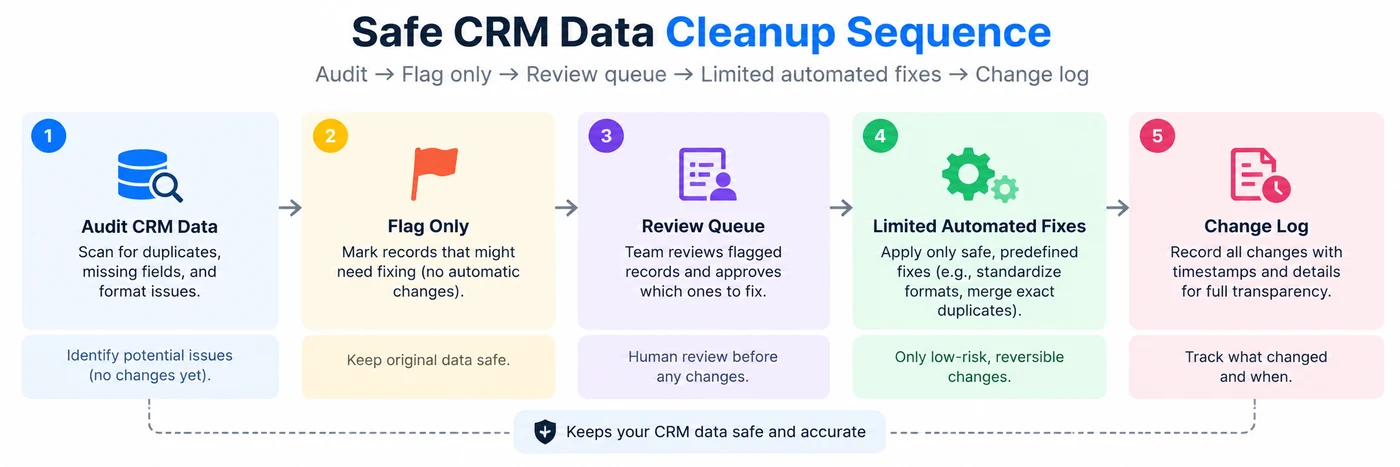
Most small teams don't start with a clean CRM. If yours is already messy, don't switch on automatic fixes straight away. Work in this order:
- Back up and audit. Export your data, then count duplicates, empty required fields and stale deals.
- Write the rules. Settle stage definitions, dedupe keys and field formats first.
- Run in flag-only mode. Workflows tag problem records but change nothing.
- Review in batches. A person approves the flagged records, and you learn which rules are reliable.
- Automate the safe fixes. Only rules with a clean track record, such as trimming spaces, standardizing country names or merging exact duplicates, run on their own.
- Log every change. You should always be able to see what the automation changed and undo it.
n8n, Make.com or your CRM's built-in automation?
Many CRMs include their own workflow tools, and they are often enough for actions that stay inside the CRM, such as assigning an owner, creating a task or sending an internal notification. What is included varies by CRM and plan, so check yours before building anything.
Reach for an external tool like n8n or Make.com when a workflow spans several systems (billing, Slack, a meeting tool, an enrichment provider), when it needs an AI step, or when the logic goes beyond what the built-in tool handles.
| CRM built-in automation | Make.com | n8n | |
|---|---|---|---|
| Best for | Actions that stay inside the CRM | Simpler multi-tool automations with fewer stages | Complex, multi-stage workflows with branching and repeated logic |
| Reach beyond the CRM | Varies by CRM and plan | Wide, through integrations | Wide, with room for custom code |
| Technical comfort needed | Lower | Moderate | Higher |
| Trade-off | Limits depend on your plan and the CRM | Can get harder to manage as scenarios grow | Takes more setup and skill |
Our rule of thumb: use the built-in tool for simple in-CRM actions. Choose Make.com for simpler cross-tool automations. Choose n8n when a workflow is dynamic, repetitive and needs several layers of logic. For current pricing and features, check each vendor's official pages, since these change often. For a wider comparison, see our AI workflow automation guide.
Risks and guardrails
A CRM is the record of your revenue, so automation that writes to it needs a few safeguards from day one.
- Overwritten data: Fill empty fields only, and never overwrite something a person entered. Keep a log of every change.
- Bad merges: Merging records is hard to undo. Flag duplicates and approve merges by hand until your rules are proven.
- Loops and duplicate triggers: A workflow that updates a record can trigger itself or another workflow. Add a guard field, such as "handoff completed," and test for loops.
- AI-written content in records: Label AI-generated notes as such, keep them factual and let a person confirm anything that changes a field.
- Errors and limits: Add failure alerts, retries and logs. API limits and failed calls happen, and a silent failure is worse than a visible one.
- Access control: Give each workflow only the permissions it needs.
- Ownership: Name one person responsible for each workflow and for the CRM itself.
A 30-day plan to launch your first CRM workflow
Week 1 (days 1-7): Audit and define. Export your data, list the manual CRM tasks, score them with the table above and pick one workflow. Write down stage definitions and required fields.
Week 2 (days 8-14): Build in flag-only mode. Build the workflow so it reads and flags but doesn't change records. Test with sample data and handle edge cases.
Week 3 (days 15-21): Test on real data. Run it on real records, review every flag and fix the rules. Add human review steps where errors would cost you.
Week 4 (days 22-30): Launch and measure. Switch on the safe automated actions, track time saved and error rate, document the workflow and pick the next one. For a fuller version of this plan, see our AI workflow automation guide.
Frequently asked questions
What is CRM automation?+
It is the use of rules, integrations and sometimes AI to handle repetitive CRM work automatically, such as creating records, assigning leads, setting follow-up tasks, updating deals and producing reports.
What is a CRM system?+
A CRM (customer relationship management) system is software that stores a company's contacts, companies, deals and conversation history in one place so a team can manage sales and customer relationships.
What is the difference between CRM automation and marketing automation?+
Marketing automation focuses on campaigns, such as email sequences and audience segments. CRM automation focuses on the operational work around leads, deals and customer records. Many tools combine both.
How do you automate CRM data entry?+
Connect your forms, meeting tools and inbox to the CRM so records are created and updated automatically. Use rules to match existing contacts, and use an AI step to extract details from notes. Keep a review queue for uncertain matches.
Do I need a developer to automate my CRM?+
Not always. Built-in CRM automation and visual builders handle many workflows without code. A developer or experienced automation specialist helps with APIs, webhooks, error handling and anything that touches sensitive data.
Does CRM automation need AI?+
No. Most CRM automation is rule-based. AI helps with messy text, such as call notes and free-text answers, but it should read and draft, not make unreviewed changes to your records.
What should I not automate in my CRM?+
Avoid unreviewed merges, automatic deletion, deal stage changes decided by an AI model, and anything customer-facing that goes out without human approval.